 Skye Desk
Docs
Using Skye Desk
One project from images to a chosen checkpoint, step by step. Each step is one sentence; every screenshot is the real app.
01 / Organise
Organise
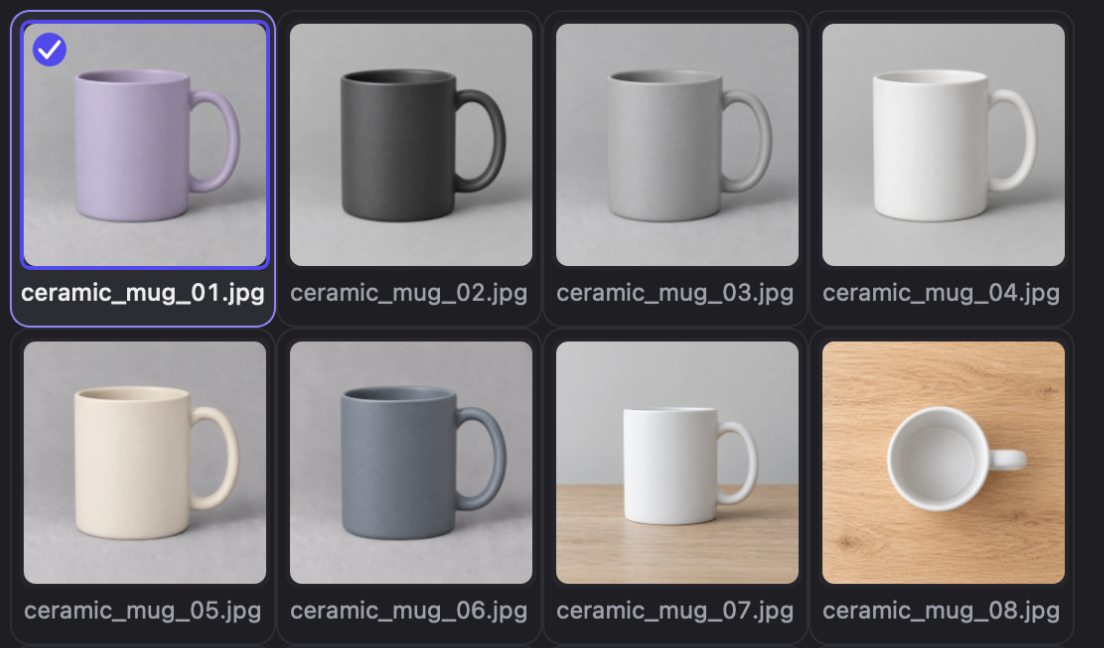
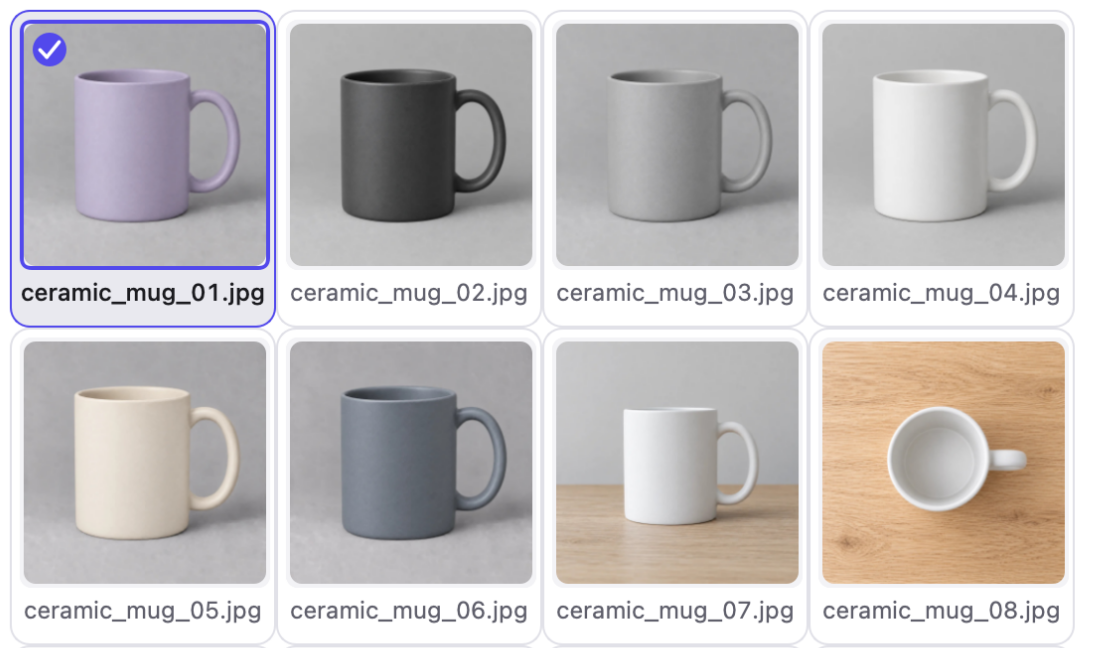
Available- Import. Bring a folder of images into a LoRA project.
- Filter. Filter and search by file name or caption.
- Check. Flag missing, empty and orphan captions.
- Mark. See which images will train and which still need work.
02 / Caption
Caption
Available- Edit one by one. Edit each caption in text or tag mode; it saves as you type.
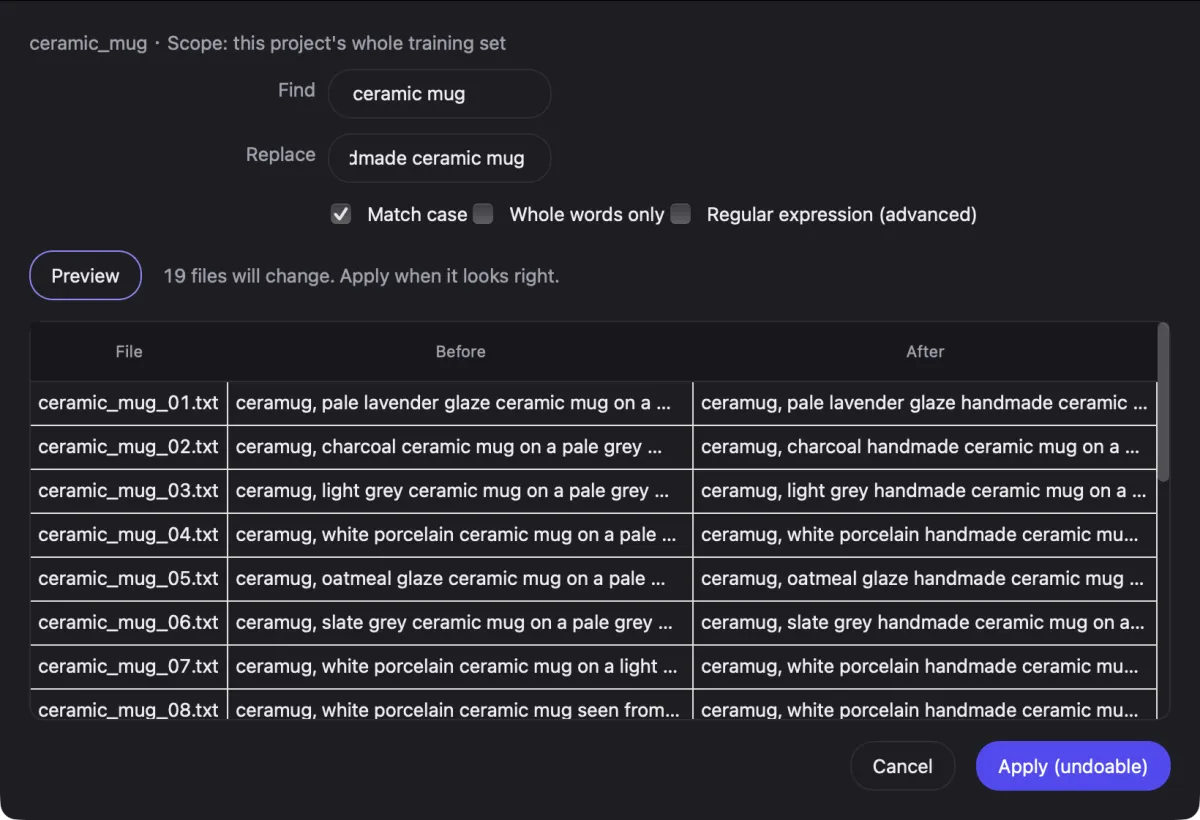
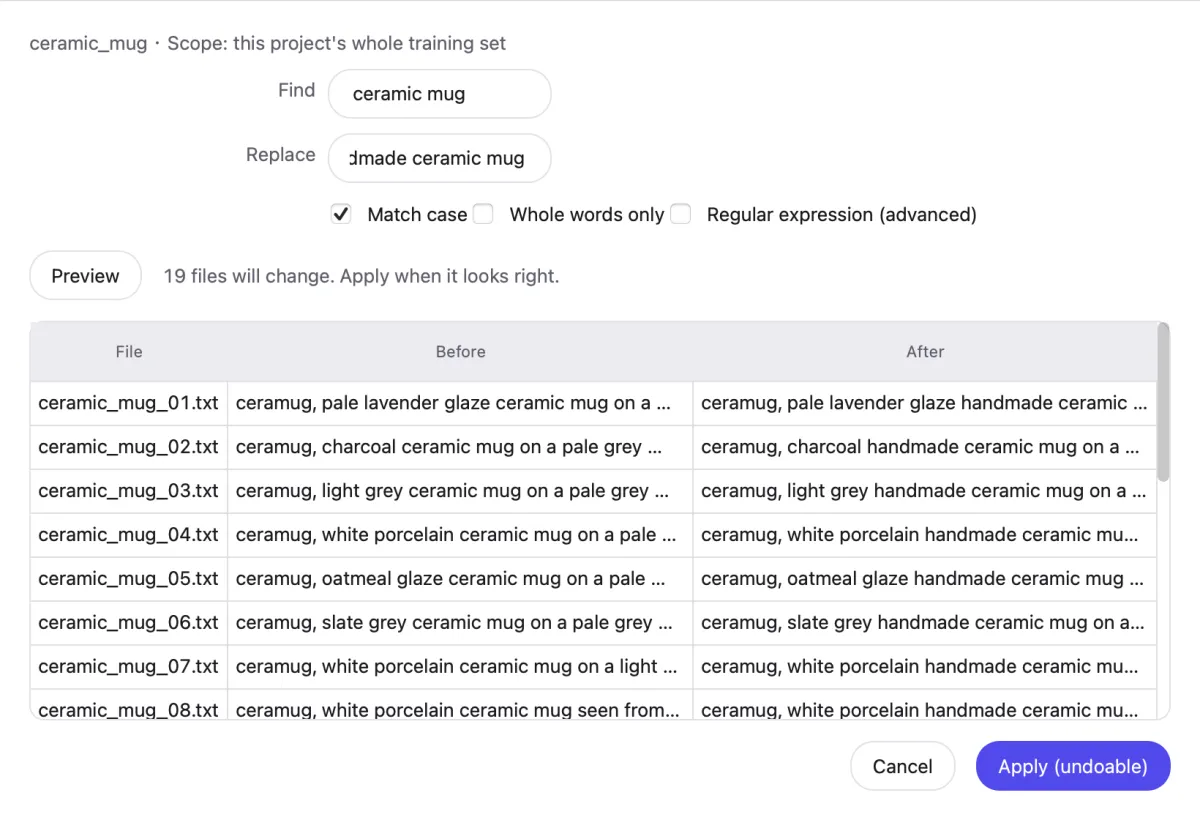
- Batch replace. Find and replace, or add a trigger word, across the whole set.
- Preview, apply, undo. See every change first; undo keeps captions you edited later.
- AI round trip. Export for an external AI, review its drafts, import them back.Coming soon
03 / Train
Train
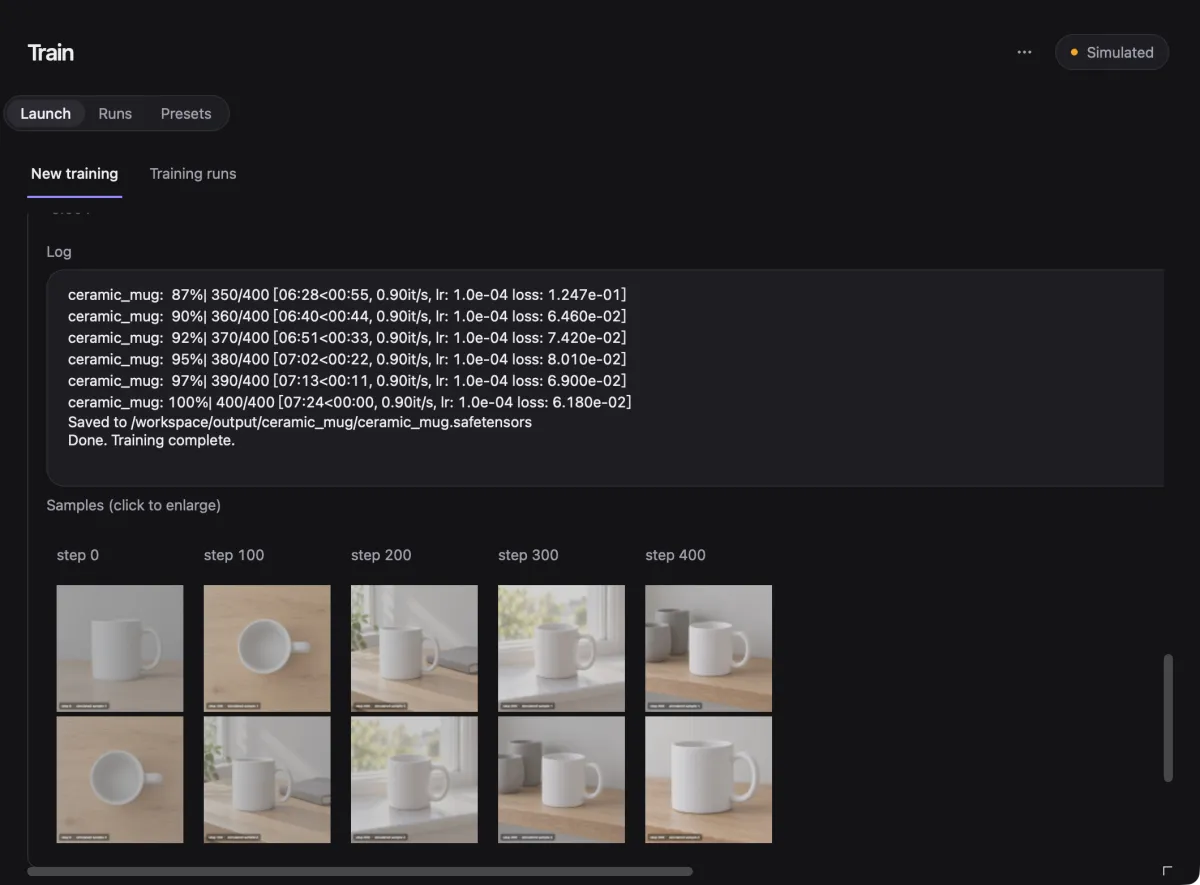
Demo mode- Choose a preset. Start from a preset, then set steps, learning rate and resolution.
- Upload. Package the dataset for the GPU provider.
- Launch. Start the run with the time and cost estimate in view.
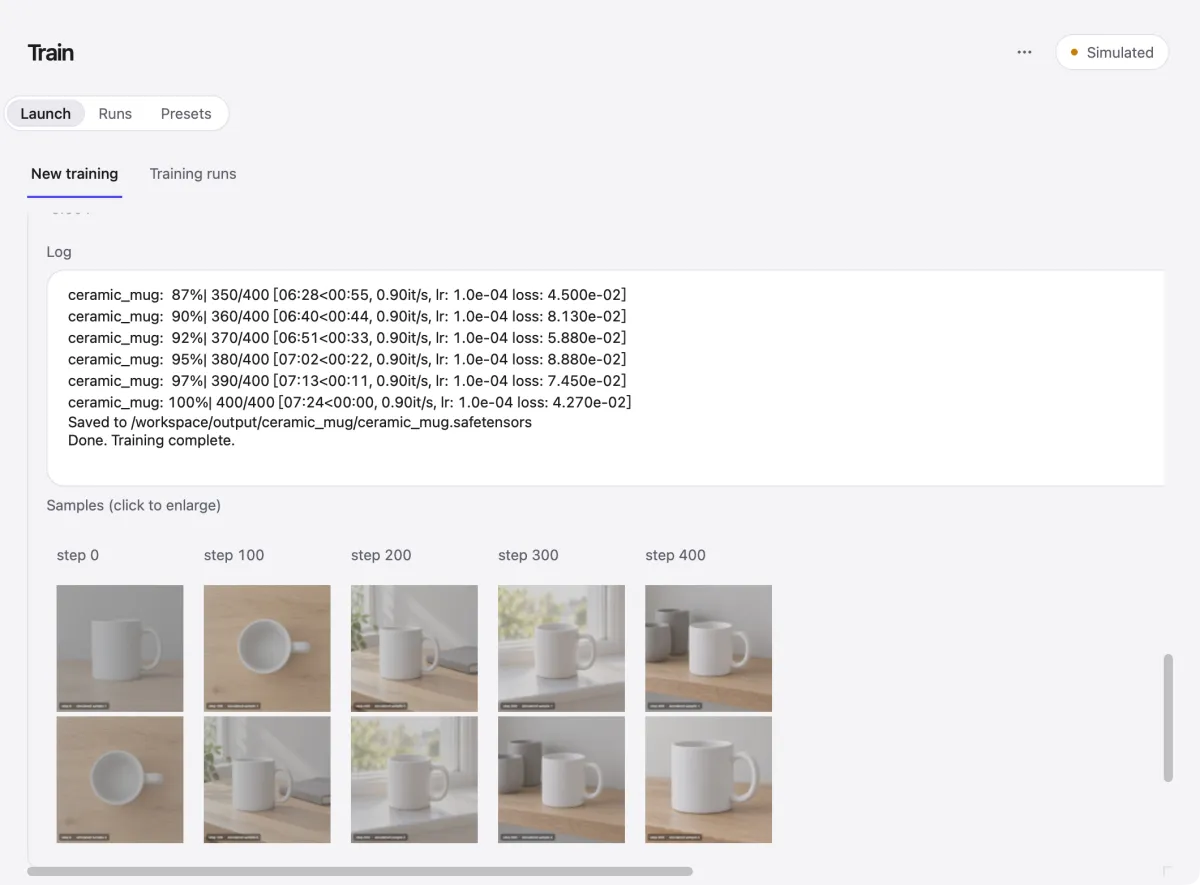
- Live progress. Follow the log, loss and step samples as they arrive.
- Reclaim. An idle Pod reminder, so a GPU never bills for nothing.
04 / Generate
Generate
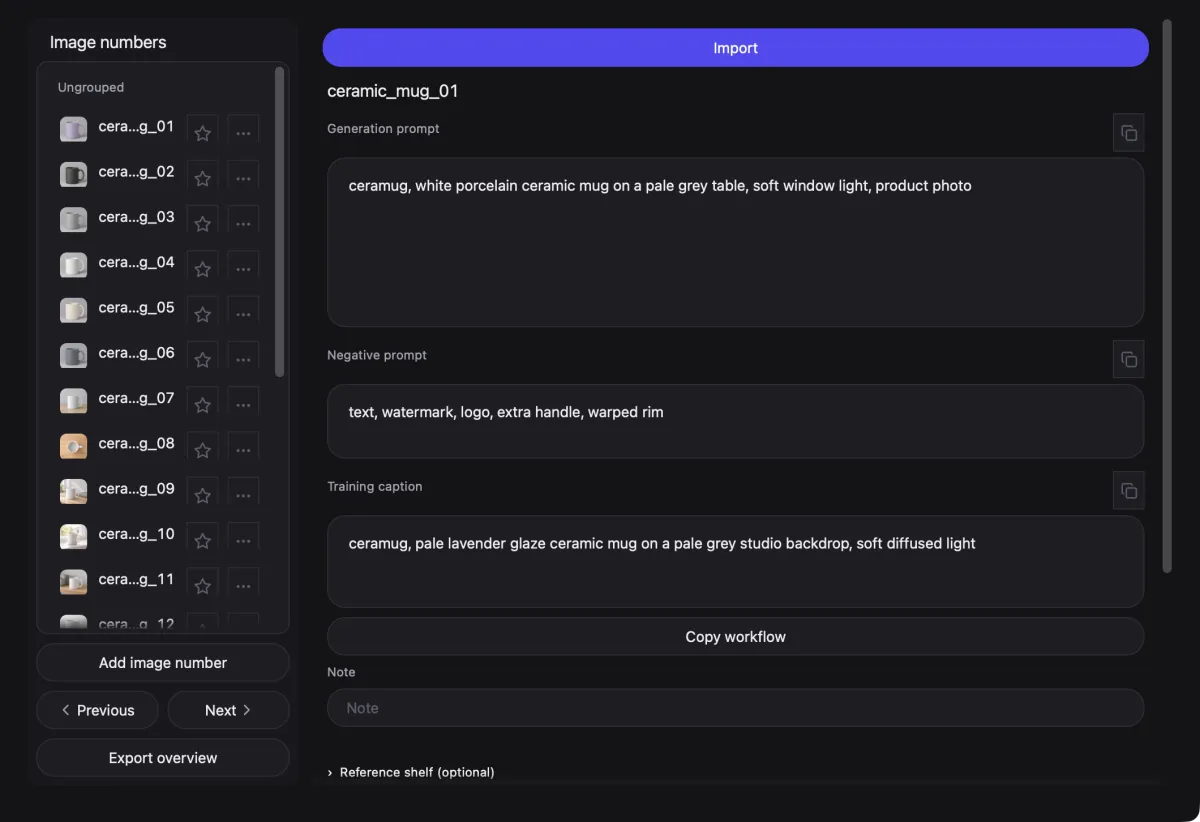
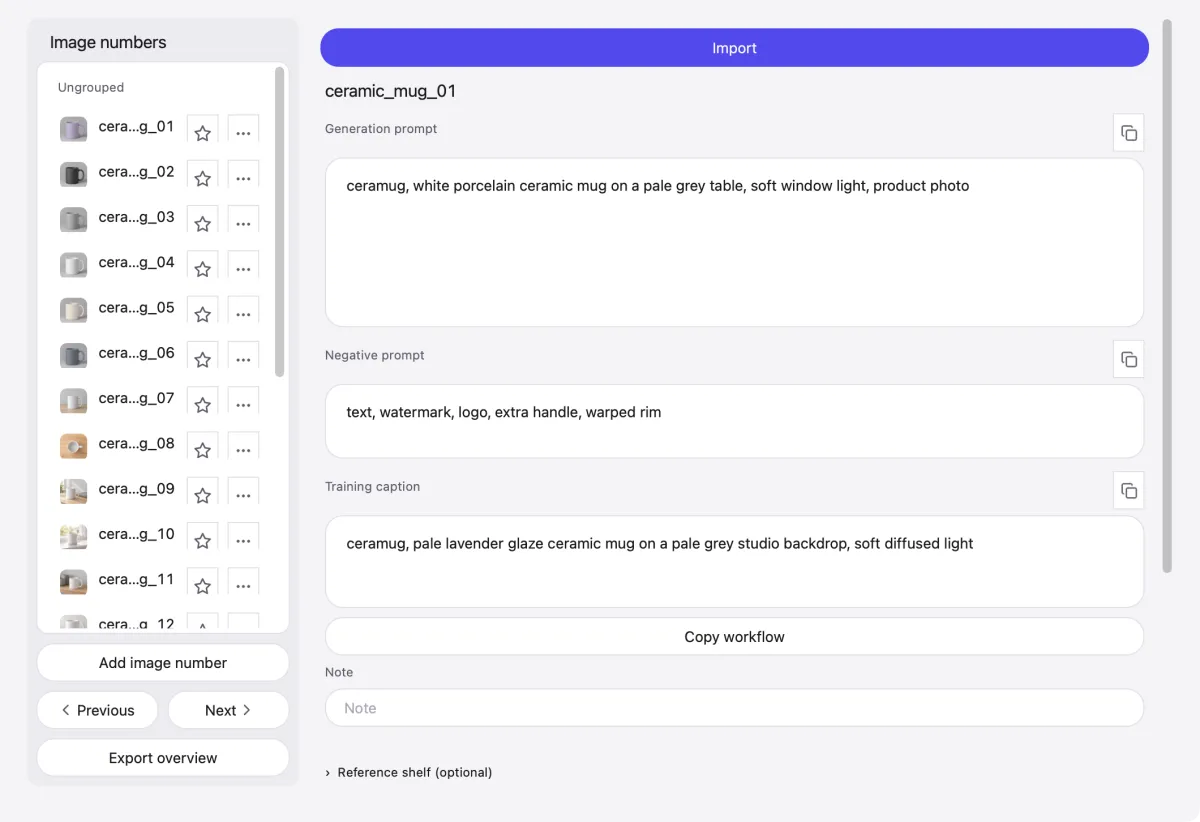
Available- Prompt per number. Give each image number its own prompt and negative prompt.
- Copy workflow. Copy the project workflow, then generate externally in ComfyUI.
- Kept / Inbox sorted by image number. Import external results into the matching number’s Inbox. Unmatched filenames are skipped.
05 / Compare
Compare
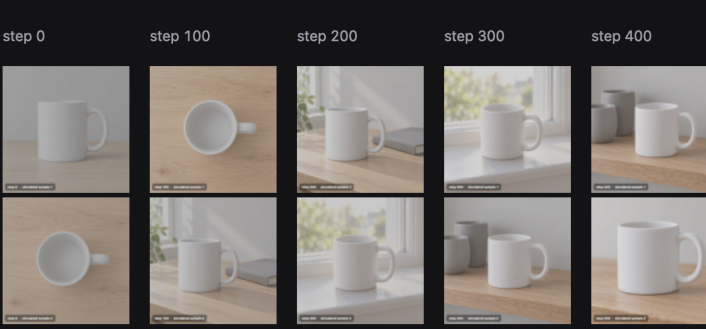
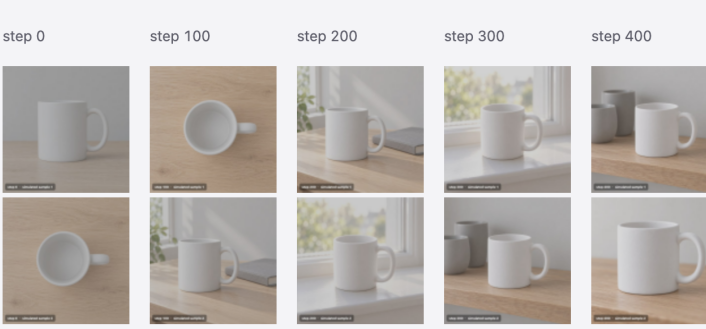
Demo mode- Side by side. Line up samples from every saved step.
- Blind test. Hide step numbers so they cannot sway you.
- Select. The blind-test winner is selected in the results table.
- Export. Export the chosen version from the results table.
Generate
Batch generation with your own ComfyUI workflow
- Export your workflow. In ComfyUI, export the workflow you want as JSON.Available
- Add it to the Library. Put the JSON in Skye Desk’s Library › Workflows and attach it to the project.Available
- Write prompts per image. On Generate, give each image number a prompt and a negative prompt.Available
- Fill the workflow. Skye Desk writes each number’s prompts into the workflow for you.Coming soon
- Run in ComfyUI. Copy the project workflow, then run it in your external ComfyUI.Available
- Batch submit. One click sends every number to your local ComfyUI.Coming soon
- Bring results back. Import external results; matching filenames go into the existing image number’s Inbox.Available
- Sort by image number. Names such as 01.png and 01_anything.png go to number 01. Unmatched files are skipped; no new numbers are created.Available
ComfyUI is optional and external. Generate does not call it: copy the workflow, generate externally, then import the results.
Connections
Connections and training backends
- NowDemo modeThe training backend is Demo mode. It connects to no cloud service, so you can go through the whole workflow at no cost. The Connections page shows connection status and settings.
- RunPodComing during the betaNot yet verified: RunPod Secure Cloud with AI Toolkit. Real GPU acceptance is still pending.
- Other providersLaterVast.ai and others come later, with no date.
- ComfyUIAvailableOptional external tool for generating images. Copy the project workflow and run it there; Generate does not call ComfyUI.
What you will need for RunPod
- A RunPod account. RunPod bills you directly for GPU time and storage.
- A RunPod API key, entered on Skye Desk’s Connections page. It is stored in the macOS Keychain and never written to project files.
- Optional: a Network Volume and an S3 API key, to browse cloud storage without starting a Pod. Only some data centres support this.
Step-by-step setup and screenshots will replace this section once the RunPod connection is verified in the app.
Demo mode
What works in Demo mode
- Organise, caption and Generate planning work on your files as they are; nothing is simulated.
- Training runs on a simulated backend: you can set up a run, follow its log, loss and samples, and stop it.
- Compare and the blind test use the simulated samples, so you can try the review flow end to end.
- Nothing is sent to a GPU provider and nothing is billed while Demo mode is on.