 Skye Desk
Chapter 6
Reference
Shortcuts, words, privacy, licences and quick fixes.
Keyboard shortcuts
The keys worth learning first.
Press a shortcut on your own keyboard
Click the keyboard, then press ⌘K, Space or C.
- Opens the first page in the top bar; ⌃2 to ⌃8 open the others, left to right.
- Finds any page, project or command.
- Searches the page you are on.
- Previews the selected photo full size.
- Moves to the previous photo.
- Moves to the next photo.
- Renames the selected photos.
- Moves the selected photos to Recently deleted.
- Undoes the last change, even a batch.
- Compares the selected pictures side by side.
- Resets the zoom.
- In Runs, sets the final version.
- In Generate, passes a result.
- In Generate, rejects a result.
- Opens the Filters bar.
- Opens the number rules: tag count, words, tokens.
- Opens the export panel.
- Saves the caption you are writing.
- Turns privacy mode on: every picture is blurred while you share your screen.
- Pastes a screenshot into a reference board.
- In a blind test, votes for neither.
Not a Skye Desk shortcut.
The ones to learn first
- ⌃1–⌃8 open the pages in the top bar, left to right.
- ⌘K finds any page, project or command.
- ⌘F searches the page you are on.
- Space previews the selected photo; ← and → move between photos.
- Return renames; ⌘⌫ moves to Recently deleted; ⌘Z undoes.
- C compares the selected pictures side by side; 0 resets the zoom.
- In Runs, F sets the final version. In Generate, A passes and X rejects.
- ⇧⌘H turns privacy mode on and off.
The Help menu lists every shortcut.
Privacy mode
Press ⇧⌘H before you share your screen: every picture is blurred, the status bar says privacy mode is on, and it stays on until you turn it off or quit.
Ten languages
Skye Desk speaks the same ten languages as this site: English, Simplified and Traditional Chinese, Japanese, Korean, Spanish, Brazilian Portuguese, French, German and Italian.
Words you will meet
Short meanings, in the order you meet them.
- LoRA
- A small add-on model that learns one subject – a coat, a character, a product, a style – from your photos. With it, an AI image model draws that subject the same way every time.
- Base model
- The big AI image model your LoRA adds to. A LoRA works with the model family it was trained on.
- Trigger word
- A made-up word, such as my_coat, that calls up your subject in a prompt.
- Caption
- The sentence that describes one photo. The AI learns from each photo and its caption together.
- Dataset
- The photos and captions of one subject, kept together in one project.
- Step
- One round of learning. Training saves a copy every so many steps, so you can compare them.
- Checkpoint
- A saved copy of the LoRA at one step. The final version is the checkpoint you keep.
- Prompt
- The text you give an image model to describe the picture you want.
Privacy and consent
What leaves your Mac, and whose photos you may use.
- Your photos stay on your Mac. Nothing is uploaded unless you start a cloud run.
- Train on a real person only with their written consent, and never on anyone under 18.
- Do not train on other people’s work or likeness without permission.
Can I use it commercially?
It depends on the base model’s licence and on your right to use the photos.
The pictures, captions and LoRAs you make are yours. Whether you may sell them, or make them for a client, depends on two things: the licence of the base model you trained on, and your right to use the photos you trained with.
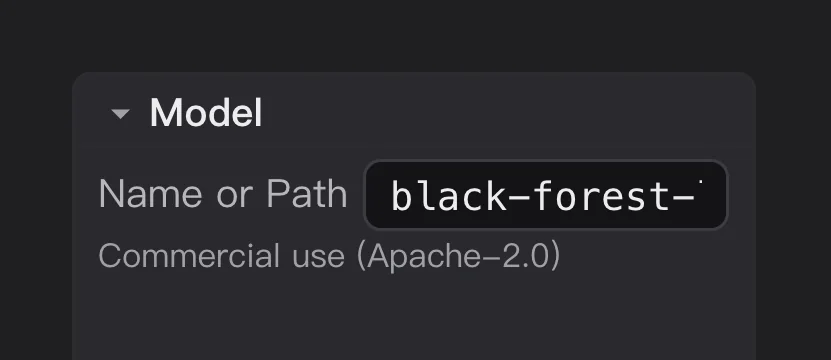
On Launch, the line under the base model names its licence, and the Pre-flight check warns you when a base model does not allow commercial use.
Base models
| Base model | Licence | Commercial use |
|---|---|---|
| FLUX.2 [klein] base 4B | Apache-2.0 | Allowed |
| Qwen-Image, Qwen-Image 2512 | Apache-2.0 | Allowed |
| Z-Image, Z-Image Turbo | Apache-2.0 | Allowed |
| Chroma1 Base | Apache-2.0 | Allowed |
| HiDream I1 Full | MIT | Allowed |
| Lumina Image 2.0 | Apache-2.0 | Allowed |
| SDXL 1.0 | CreativeML Open RAIL++-M | Read its licence first |
| SD 1.5 | CreativeML Open RAIL-M | Read its licence first |
| Krea 2 Raw | Krea licence | Read its licence first |
| FLUX.2 [klein] base 9B, FLUX.2 [dev] | FLUX Non-Commercial | Not allowed |
| FLUX.1 [dev], FLUX.1 Kontext [dev] | FLUX Non-Commercial | Not allowed |
- AllowedThe licence allows commercial use. Some ask you to keep their notice.
- Read its licence firstThe licence has its own rules for commercial use. Read them before you sell anything.
- Not allowedThe licence is for non-commercial use. Do not sell the LoRA or paid work made with it.
This is a short guide, not legal advice, and licences change. The licence text of each model is what counts: read it before you sell anything.
Your photos
- Train on photos you took yourself, or photos you have permission to use for training.
- Train on a real person only with their written consent, and never on anyone under 18.
- Logos, brands and characters that belong to someone else can be protected even when the base model allows commercial use. Leave them out, or get permission.
- Stock photos and pictures from the web have their own licences. Check that they allow training.
Models that draft captions
The AI models on your Mac that draft captions have licences too. When they arrive, Skye Desk will only offer models that allow commercial use, some with conditions.
When something goes wrong
Quick fixes for the usual snags.
- macOS says it cannot check the app
- Open System Settings › Privacy & Security and click Open Anyway.
- Some photos did not come in
- The import preview counts what is new, what is already there and any problems. Skye Desk reads PNG, JPG, WebP and BMP, and turns HEIC and TIFF into PNG. Design files, RAW photos and documents are left out: export them as PNG or JPG first.
- iPhone photos (HEIC)
- They come in as PNG copies, and the import preview counts them under Converted to PNG. The photos you started from stay as they are.
- “This file is still in iCloud”
- In Finder, choose Download Now for those photos, then import them again.
- A ZIP was skipped
- A ZIP can hold up to 25,000 entries, 2 GB unpacked and 256 MB per file. Split a bigger one. For RAR or 7z, unzip it in Finder first and import the folder.
- A caption does not show up
- The caption file needs the same name as its photo: coat_01.jpg and coat_01.txt.
- Your disk is nearly full
- Every export is a full copy of its photos. Delete the old exports you no longer need, then empty the Trash.
- The run does not fit the GPU’s memory
- On Launch, choose the GPU. Skye Desk lists what to change so that the run fits – quantising, low-VRAM mode, smaller pictures, batch 1 – and applies it in one click.
- Your training tool cannot read the export
- Point it at the folder HOW TO USE.txt names: the img folder for kohya_ss, the folder named after your trigger word for OneTrainer, the dataset folder for AI Toolkit. Each export is laid out for one trainer, so export again if you picked another one.
- ComfyUI pictures do not appear in Generate
- Check the ComfyUI output folder in Settings › Generate, and keep your project open on Generate. Only pictures made after you set the folder come in.
- The LoRA learnt the background
- Shoot three to five different backgrounds, or describe the background in each caption. Tags shows when one background takes over.
- An AI model download stopped
- Coming later Click Resume: it carries on where it stopped. A model is only used once every file matches Hugging Face’s checksum.
- A cloud training run failed
- Coming later Cloud training is not in the first beta. Until then, export the dataset and train with your own tool.