 Skye Desk
Chapter 3
Write captions
One sentence per photo: what to write, what to leave out, and tools for many at once.
How captions work
One sentence per photo, starting with your trigger word.
Describe what should change from picture to picture. Leave out what the LoRA should learn.
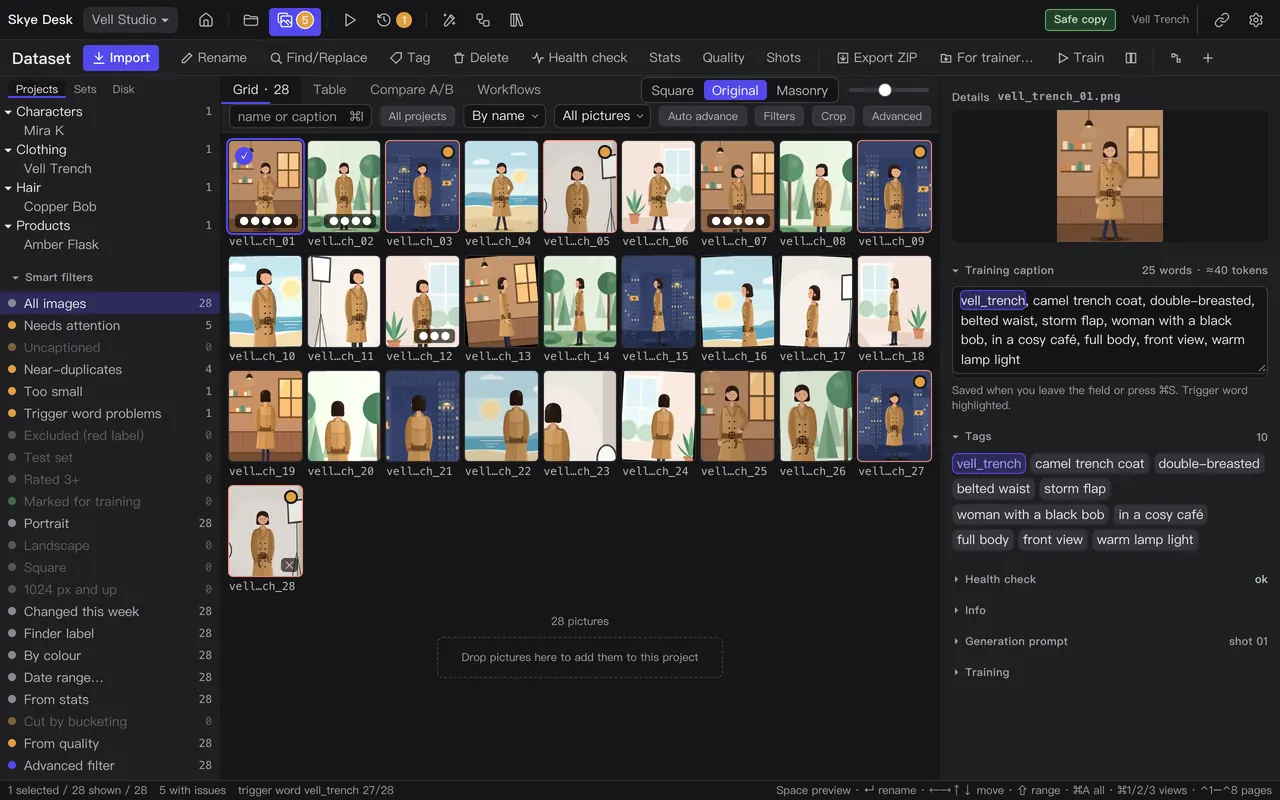
- Select a photo and type its caption in the box on the right. It saves when you leave the box or press ⌘S.
- Start every caption with the trigger word; it is highlighted as you type.
- Keep it short. The word and token count above the box turns yellow when a caption gets long.
Build a caption
Pose
Background
Light
Angle
vell_trench, standing, plain grey wall, soft window light, front view
Write what changes from photo to photo: the pose, the place, the light, the angle.
Leave out what the LoRA should learn: camel colourdouble-breastedbelted waiststorm flap
Change a word in every caption
Fix one phrase across all your captions at once.
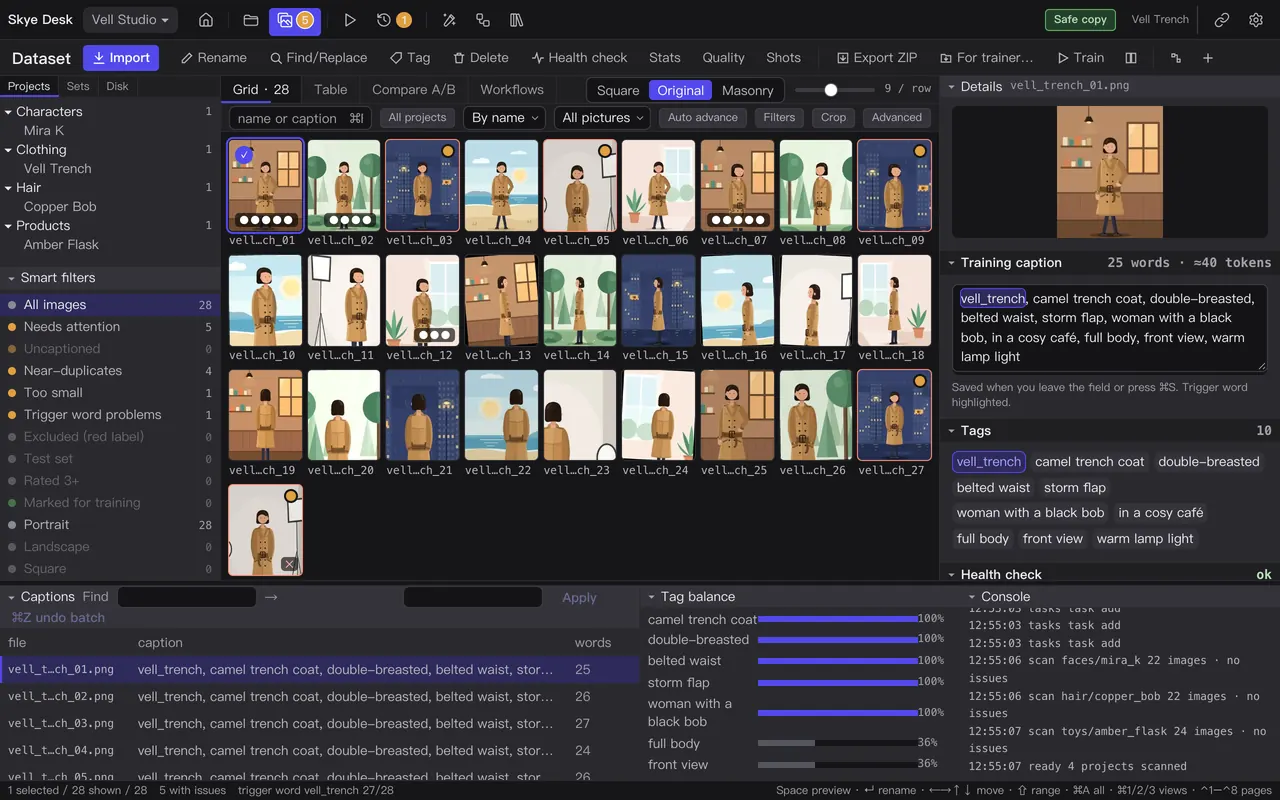
- Click Find/Replace on the Dataset toolbar.
- Type the words to find and what they should become.
- Read the preview: every caption that changes is listed.
- Click Apply. ⌘Z undoes the whole batch.
Trigger word tools
Keep your trigger word spelt the same everywhere.
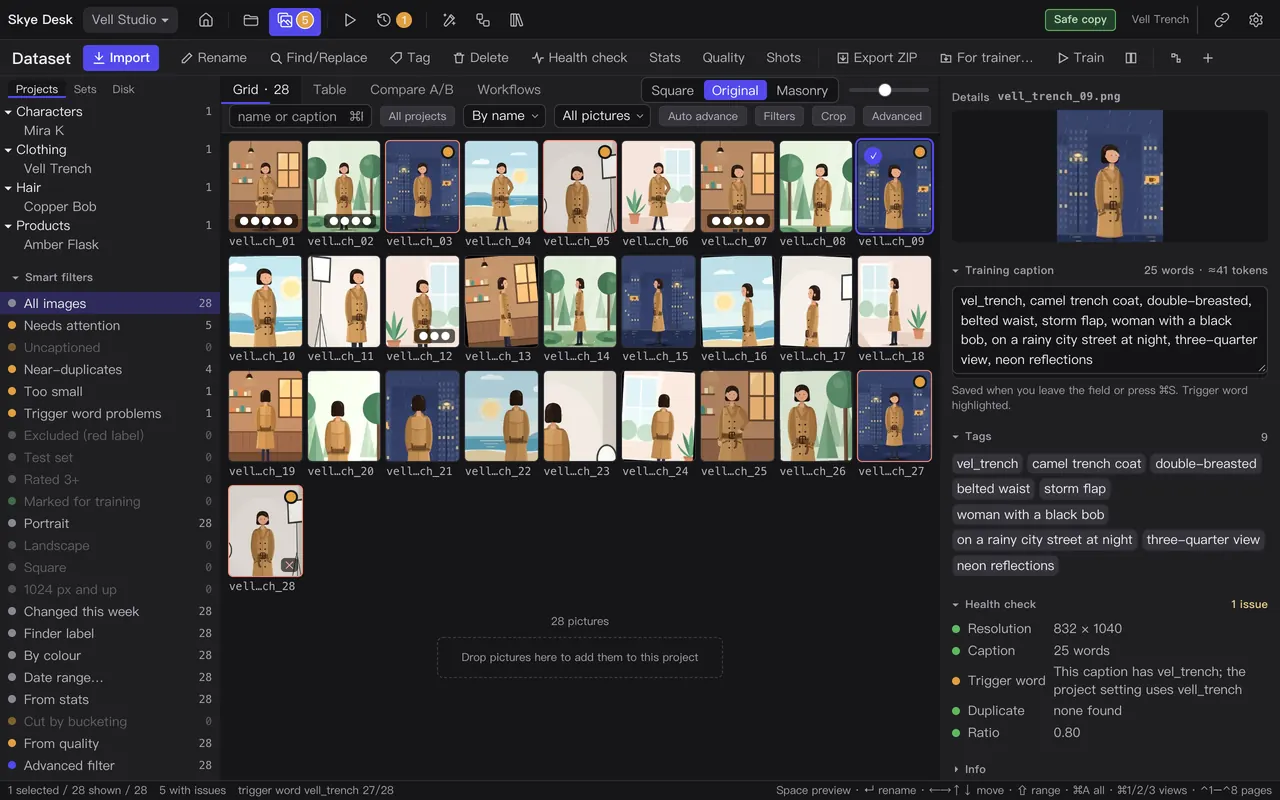
- Click Trigger word problems on the left to see captions that miss the word or spell it another way.
- Click Find/Replace and open the Trigger tab.
- Choose Rename from…, type the old spelling (vel_trench) and check that the trigger word field says vell_trench.
- Read the preview: each caption before and after. Only a whole comma-separated item that matches the old spelling (capitals or not) changes. If a caption then has the trigger word twice, only the first is kept.
- Click Apply. ⌘Z undoes the whole batch.
More on the Trigger tab
- Add where missing puts the trigger word at the start of every caption that has none. It does not fix a misspelt one.
- Move to the start moves the word to the front of each caption; Remove takes it out.
With Find & replace
Find & replace works for any text. On its tab, find the misspelt word (vel_trench), replace it with your trigger word (vell_trench) and tick Whole words, then check the preview and click Apply.
Try it
vell, trench coat, studio light, plain backgroundVell, trench coat on a rainy street at nightvel, trench coat, close-up of the collar
1 / 3 captions use it exactly · 2 spelt another way
Tags and balance
See which words take over your captions.
- Open Tags under the grid. The bar shows what share of captions uses each word.
- Click a word to see the photos that use it.
- Right-click to rename or delete a word, or open All… to merge several into one.
- Drag words to reorder them; the trigger word stays first.
If one background or pose is in most captions, the LoRA will learn it too. Rewrite those captions or shoot more variety.
Write many captions at once
Add the same words to a group of photos.
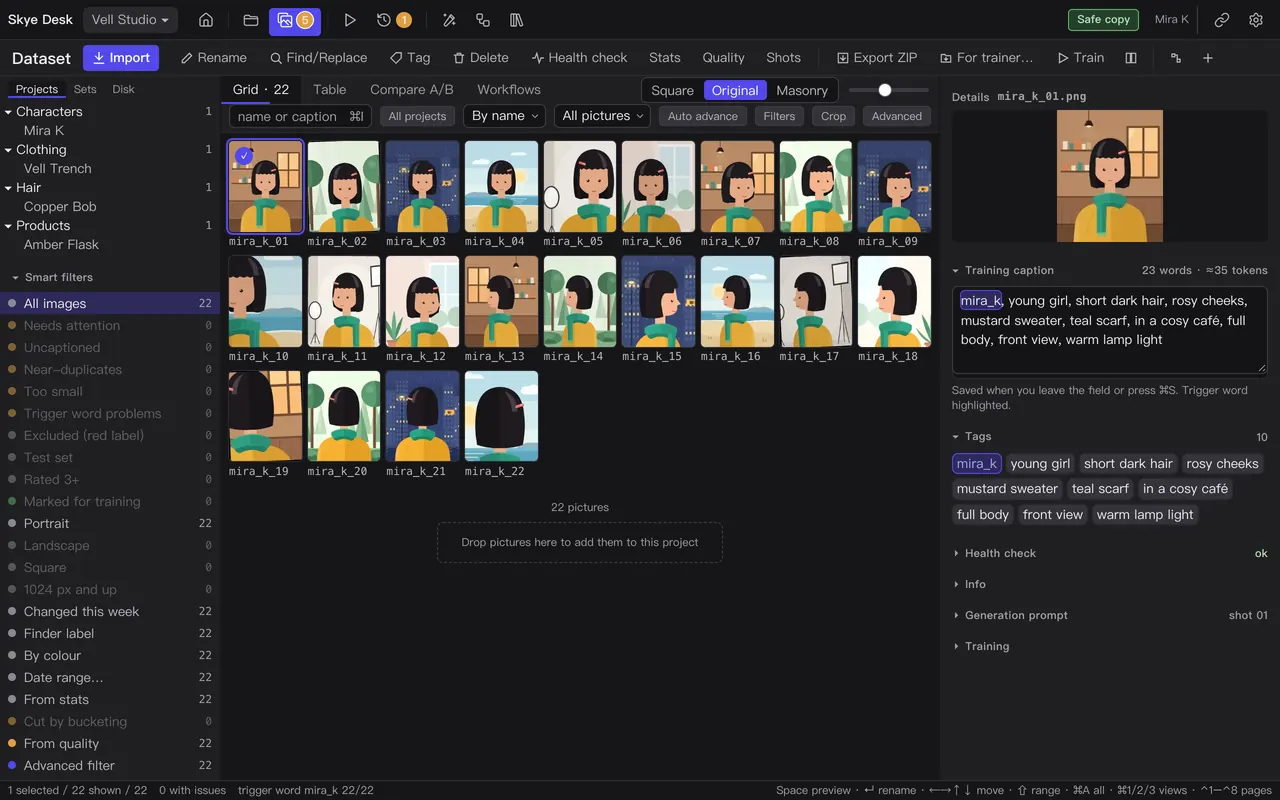
- Select the photos.
- Click Find/Replace to open the batch caption tools, and type what to add or change.
- Check the preview and apply. ⌘Z undoes it.
Coming later
- AI caption drafts written on your Mac.
- Importing captions from another AI.
- Reviewing new captions one by one.
AI models on your Mac
Small AI models that draft captions and tags and cut masks on your Mac, without uploading your photos.
Coming later
None of this is in the first beta. It is here so that you can plan the disk space and check the licences.
Which models
Skye Desk offers a small first set: about 3.6 GB in all, with the Python they run in (about 1.5 GB).
| Model | Download size | Licence | Commercial use |
|---|---|---|---|
| Florence-2-large-PromptGen v2.0Caption drafts in sentences or tags; finds the clothes, face or hair for a mask | about 1.6 GB | MIT | Allowed |
| WD vit tagger v3Comma tags for SDXL projects | about 0.4 GB | Apache-2.0 | Allowed |
| SAM 2.1 tinyCuts the masks | about 0.2 GB | Apache-2.0 | Allowed |
Larger models are listed too, for when you have the space:
| Model | Download size | Licence | Commercial use |
|---|---|---|---|
| JoyCaption Beta OneCaption drafts | about 16.5 GB | Llama 3.1 Community License | With conditions |
| Qwen2.5-VL-7B-InstructCaption drafts | about 16.6 GB | Apache-2.0 | Allowed |
| Qwen3-VL-4B-InstructCaption drafts | about 8.9 GB | Apache-2.0 | Allowed |
| Florence-2-largeFinds the parts for masks | about 1.5 GB | MIT | Allowed |
| WD eva02-large tagger v3Tags | about 1.2 GB | Apache-2.0 | Allowed |
| BiRefNetMasks of the whole subject | about 0.9 GB | MIT | Allowed |
| SAM 2.1 base+Cuts the masks | about 0.3 GB | Apache-2.0 | Allowed |
JoyCaption follows the Llama 3.1 Community License, which adds conditions – credit, naming and an acceptable-use policy. Read the licence text before you use it. Models whose licence does not allow commercial use, such as RMBG-2.0, Qwen2.5-VL-3B and the clothes and face parsing models, are not offered.
Download and remove
- Nothing downloads until you confirm. First Skye Desk shows each model’s name, size and licence, and how much free space will be left.
- Models come from Hugging Face. A download can be stopped and resumed, and every file is checked before it is used.
- They live in their own folder, ~/Skye Desk/models, outside your workspace and with their own Python: nothing else on your Mac changes.
- To free the space, quit Skye Desk and delete the model’s folder there.
What needs them
- Auto caption on the Dataset toolbar writes drafts for the photos you choose. They are a preview: nothing reaches your captions until you click Apply, and ⌘Z undoes the whole batch.
- Masks cuts out the clothes, the face or the hair, so that training can focus on them. Masks of the whole subject need BiRefNet from the larger set.
- Without the models everything else works as before, and you write the captions yourself.
Captions for each kind
What to write for clothing, characters, hair, products and styles.
- Clothing
my_coat, a trench coat on a dress form, side view, plain grey backgroundDescribe: the pose, the person or dress form, the background, the light, the camera angle.
Leave out: the fabric, colour, cut and details you want the coat to keep – the LoRA should learn those.
- Characters
my_char, sitting on a bench, three-quarter view, soft evening light, city streetDescribe: what the character is doing, the pose, the clothes if they should change, the place and the light.
Leave out: the face, the hair, the colours and markings that make the character who they are.
- Hair
my_hair, woman seen from the side, indoor window light, plain wallDescribe: who wears it, the angle, the light, the background, the clothes.
Leave out: the cut, the length, the colour and the texture of the hair itself.
- Products
my_bottle, on a stone plinth, top view, morning light, soft shadowDescribe: where it stands, the angle, the light, the props and the background.
Leave out: the shape, the label, the colours and the logo – the parts that must stay the same.
- Styles
my_style, a lighthouse on a cliff, wide viewDescribe: the subject of each picture – it should be different in every one.
Leave out: how it looks: the brush, the palette, the line – that is what the LoRA learns.